

Add your creative
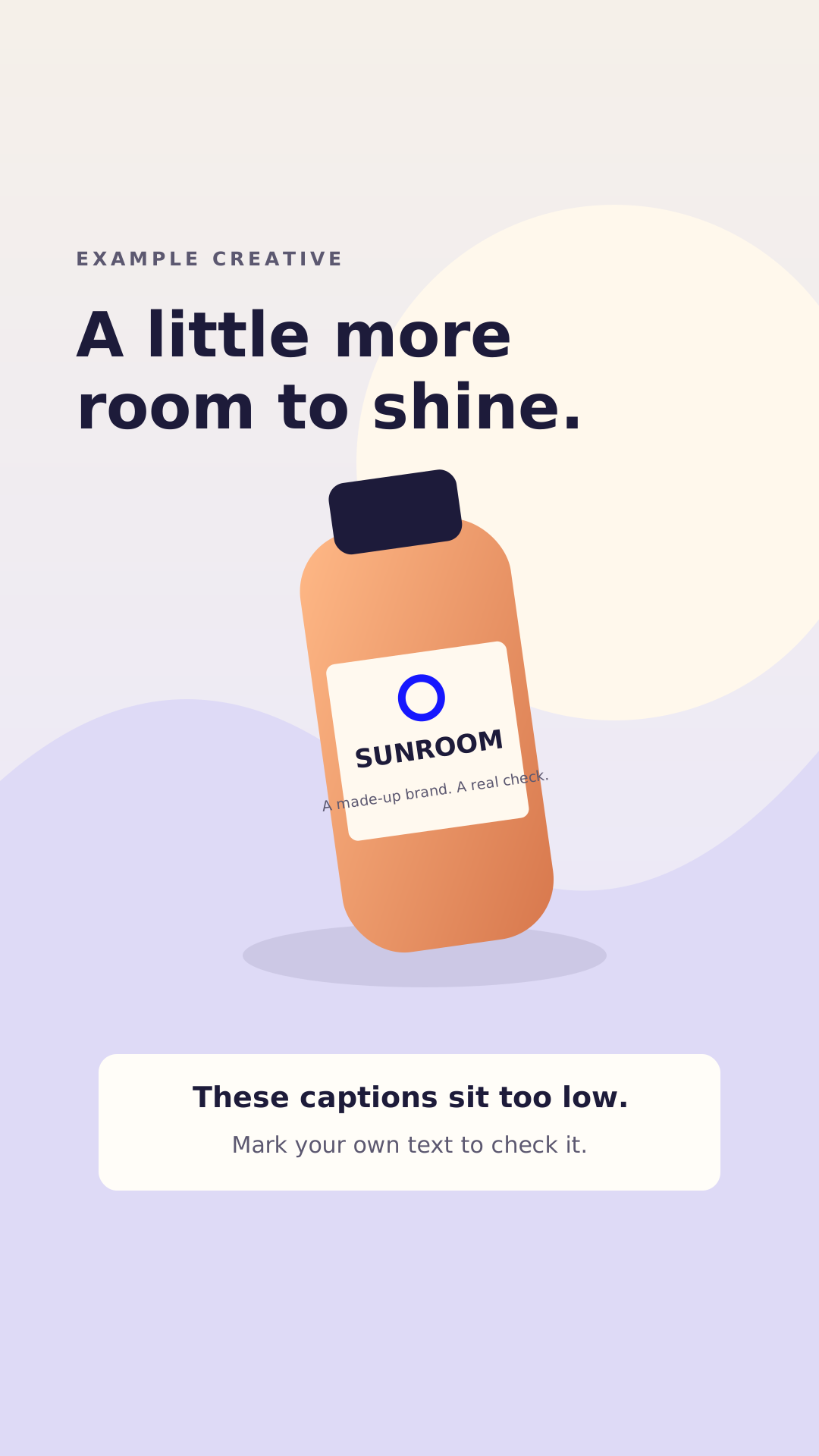
Upload an image or video, or try the example. For videos, pause on the frame you want to check.
Keep captions, logos, and calls to action in view. Preview your image or video, compare platforms, and download a guide.
PNG, JPG, WebP, MP4, MOV or WebM. Up to 200 MB.
Your image or video stays in your browser.Dashed outlines show the guide boundaries. Shaded areas are the parts to keep clear.
Move the box over important content, or draw your own. Only the marked area is checked.
Free, no account, no watermark. Exports are 1080 × 1920 PNG images.
Guides, not a platform approval check. Interfaces vary with device, captions and ad format.
Upload an image or video, or try the example. For videos, pause on the frame you want to check.
Pick your platforms and draw a box around your caption, logo or CTA. Move it to see where the guides overlap.
Download a transparent overlay for your editor, or save the current checked frame to share with your team.
The canvas is 1080 × 1920 pixels, or 9:16. These adjustable profiles are starting points. Check the intended placement in the platform’s own preview before publishing.
| Platform | Top / bottom | Left / right | Extra guide |
|---|---|---|---|
| Instagram Reels | 269 / 672 px | 65 / 65 px | None |
| TikTok | 240 / 660 px | 120 / 120 px | Right-side button column below 840 px |
| YouTube Shorts | 288 / 672 px | 48 / 192 px | None |
Meta’s Reels ads guide recommends keeping the bottom 35% clear. Our top 14% and side 6% margins are conservative defaults. Read Meta’s guide.
We scale TikTok’s Standard LTR In-Feed template from 720 × 1280 to 1080 × 1920. Captions and add-ons affect the live safe zone. The button-column guide stays fixed when you edit margins. See TikTok’s specifications.
These margins match Google’s published vertical-video-ad diagram. They are not universal organic Shorts dimensions: overlays vary by format, campaign and screen. See Google’s guidance.
Reviewed November 18, 2026. Need more context? Read our social media safe-zones guide.
Reloop completely changed how we run SaaS ads. Our average engagement increased by 62% in the first 30 days, and we finally know which creative angles deserve more budget.

Our content created with Reloop generated more than 58,000 organic views in one month. We’re publishing consistently and staying visible without living inside an editor.

Editing one video used to take nearly two hours. With Reloop, our average production time is down to 14 minutes, including captions and final edits. No final-final-v6 required.

We created four course promotions with Reloop, and they directly contributed to 27 additional course sales during our latest launch.

Reloop helped us research competitors and test 18 different creative angles in seven days. We now learn what works before committing serious campaign budget.

We’ve saved approximately €3,200 in external production costs over three months while publishing more content than before. We no longer need a studio for every campaign.

Create ads, videos and social posts with Reloop. Talk to your creative agent to refine the copy and visuals in one place.
See pricingIt is the part of a vertical creative intended to keep important text, logos and calls to action away from interface elements. Usernames, captions, buttons and ad overlays can cover the edges. A safe-zone guide helps you plan around them; it cannot guarantee the exact live layout.
Yes. Use the example or add your own file without an account. Download a transparent overlay or the current checked frame as a 1080 × 1920 PNG. There is no watermark. Your captions have enough competition already.
Yes. Add a video, play or scrub to a frame, then draw a box around its subtitles or another important area. The tool compares that box with your selected guides. It does not detect text automatically or scan every frame, so check different moments and caption positions yourself.
No. Their interface elements and ad placements differ. Select multiple platforms to see their guides together and check your marked area against each one. These are working profiles for a 9:16 canvas, not a promise that every device or organic post uses the same layout.
Some part of the box you marked touches a shaded region with overlapping area. Move the box, change your design in your editor, or adjust the guide to your intended placement. The result checks geometry only, not whether an entire creative is ready to publish.
No. File decoding, previewing and PNG export happen in your browser. The tool does not send your media to Reloop. It supports PNG, JPG and WebP images, plus MP4, MOV and WebM videos up to 200 MB. Video playback depends on your browser’s codec support.
This tool exports PNG images, not edited videos. Download the transparent overlay, place it above your creative in your editor, then hide it before exporting your final video. Think of it as the scaffolding, not part of the house.
