

Free Video Frame Extractor
Save still images from your video as PNG or JPG. Capture one moment, sample a batch, or build a timestamped contact sheet.
Free • No signup • No added watermark • Processed in your browser
MP4 with H.264 is recommended. Compatible MOV and WebM files also work. Up to 200 MB and 16 megapixels per frame.
Your video is read in this browser. It isn't uploaded for extraction.
Your captured frames
0 of 0 frames selected · 0 KB / 64 MB gallery
Captured images will appear here. Add a video or try the sample to get started.
How to extract frames from a video
Choose a video
Drop in a compatible file or use the sample. You'll see its duration and picture dimensions before capturing anything.
Pick a moment or a batch
Pause on the picture you want, enter a time, or choose a range to sample. The preview helps you check the result.
Download your images
Save one frame as PNG or JPG, download selected images in a ZIP, or create a contact sheet.
You don't need to install an editor or create an account. One less password to forget.
Capture one still or extract a batch
Use Batch frames to spread a chosen number through a range, or sample every few seconds. Check the planned times before extracting.
| You want to… | Use… | You'll get… |
|---|---|---|
| Save one selected moment | One frame | A downloadable PNG or JPG |
| Collect references across a clip | Batch frames | Selected image files, individually or in a ZIP |
| See several moments together | Create contact sheet | One PNG grid with optional time labels |
Batch mode samples selected moments. It doesn't export every frame in the video.
Review the opening three seconds
Use the opening preset to sample the start of a clip at half-second intervals. Put the selected pictures on a contact sheet to check the opening image, product visibility and text changes together.
Use it to review ad hooks, product demos or social videos before sharing feedback.
A small contact sheet can save a surprisingly long feedback thread.
See what you'll download
Try the sample video, then compare an individual image with a timestamped contact sheet from the same clip. The gallery shows each image's dimensions before you save it.
Individual images keep the chosen picture without the website's player controls. Contact sheets arrange smaller copies in a grid.
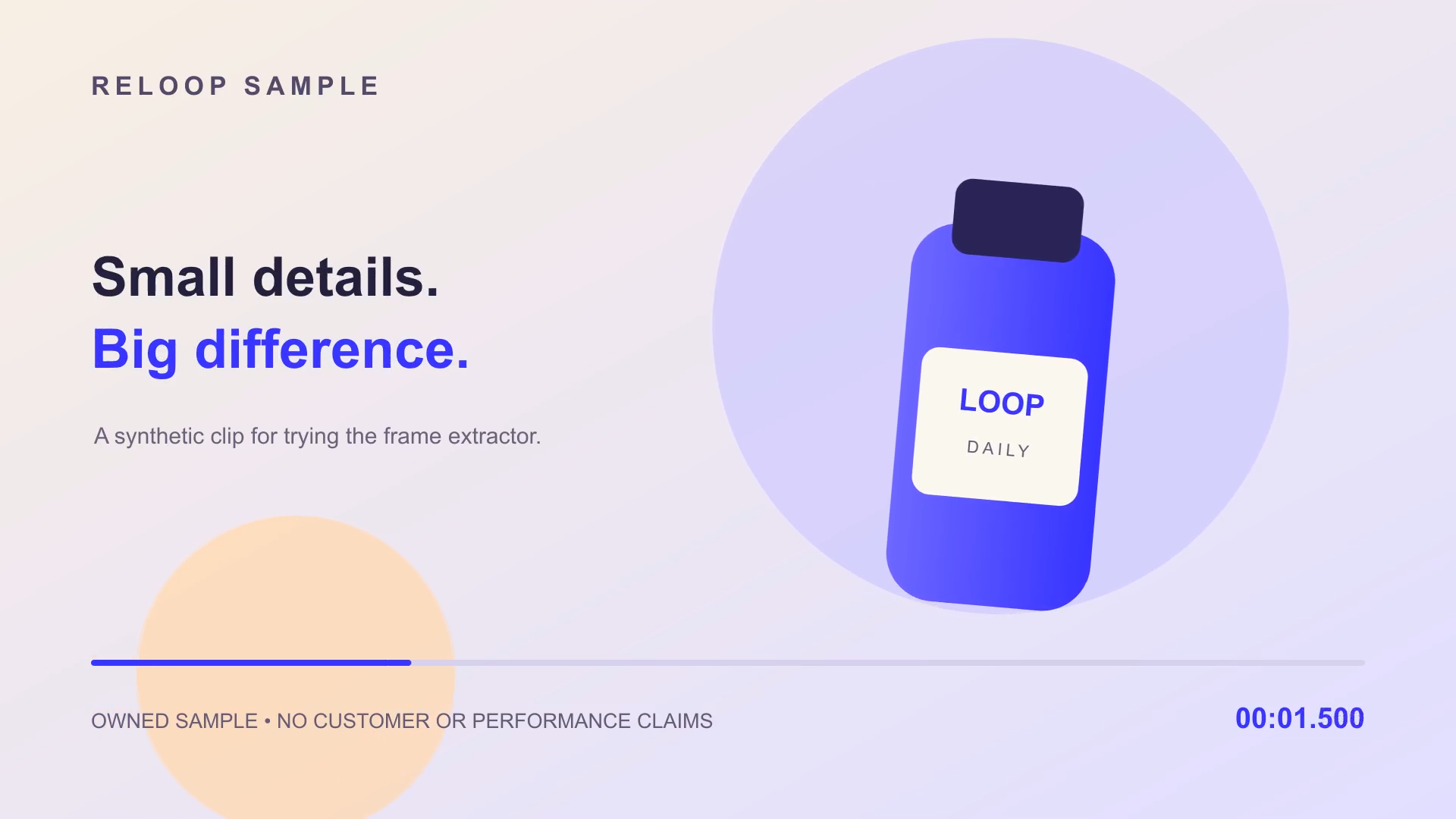
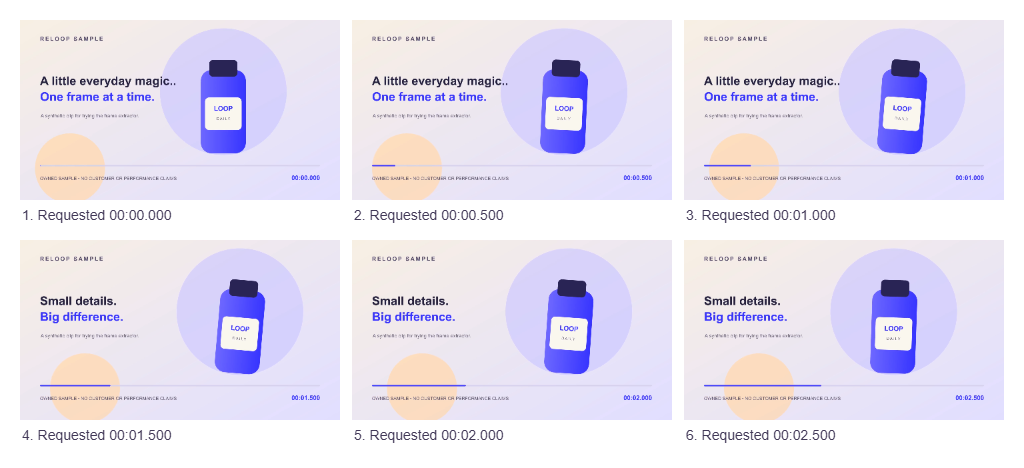
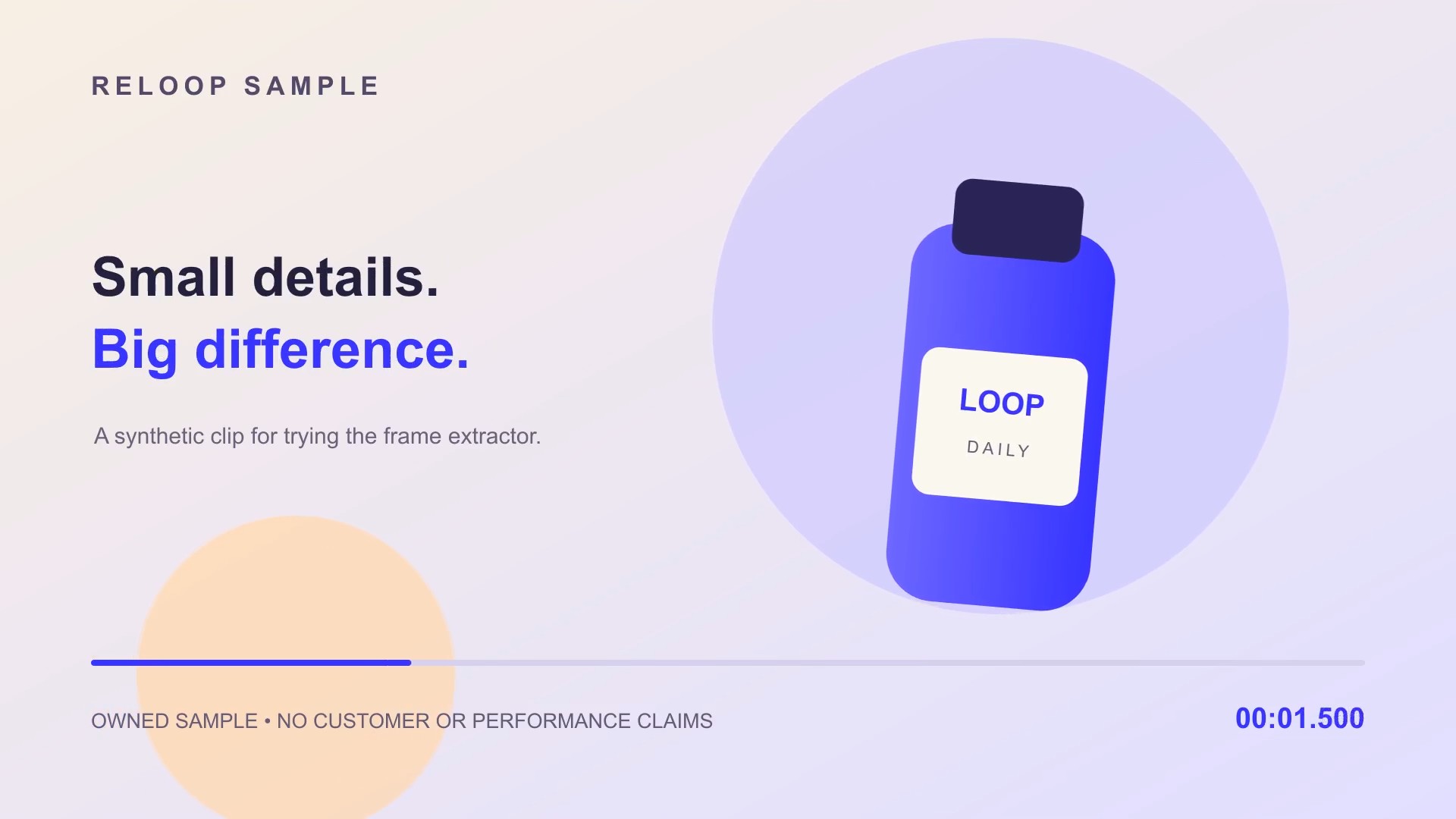
Example output from the sample video. Open the sample to capture your own selection.
PNG or JPG: which should you choose?
Both formats start with the picture decoded from your video. Choosing PNG doesn't undo compression already present in the clip. You can keep the original video dimensions or choose a smaller image for easier sharing.
| Format | Useful for | What to expect |
|---|---|---|
| PNG | Text, diagrams, interfaces and detailed references | Lossless image encoding, often a larger file |
| JPG | Photos, thumbnail options and smaller review files | Adjustable compression; smaller files can lose detail |
Save the video picture, not a screenshot of the player
An ordinary screenshot records the picture as it appears on your screen. A frame export uses the video's browser-reported dimensions when Original video size is selected.
For example, a 1920 × 1080 video can produce a 1920 × 1080 image even when the preview looks smaller on the page. Changing the browser window size doesn't change that export choice.
The play button doesn't need a starring role.
The source still sets the quality ceiling. Motion blur, video compression and browser colour handling can affect the image. HDR footage may look different in an ordinary PNG or JPG.
Time labels show the moments you request. Browser seeking can return a nearby frame, especially in variable-frame-rate videos.
Put your captured frames to work
Thumbnail options
Compare expressions, product views or key moments before choosing a still for your design.
Product and software demos
Collect selected views for a presentation, tutorial or review.
Creative feedback
Share a timestamped overview of an opening or sequence without asking everyone to pause at the same moment.
Visual references
Gather pictures from an existing clip to discuss composition, pacing or a future edit.
Supported videos and practical limits
MP4 with H.264 is the recommended starting point. MOV and WebM files also work when their codecs are supported by your browser.
Choose a video up to 200 MB, with no more than 16 megapixels per frame. You can plan up to 48 captures in a batch; large images or the gallery's memory limit can reduce that number.
The preview, extraction and image exports run in your browser. The file isn't uploaded for this process. If a video won't open, try a compatible MP4 rather than changing its filename extension.
Read how video containers and codecs differ
Convert timecode and frames into elapsed time with the Timecode Calculator.
Trusted by creators worldwide
Reloop completely changed how we run SaaS ads. Our average engagement increased by 62% in the first 30 days, and we finally know which creative angles deserve more budget.

Our content created with Reloop generated more than 58,000 organic views in one month. We’re publishing consistently and staying visible without living inside an editor.

Editing one video used to take nearly two hours. With Reloop, our average production time is down to 14 minutes, including captions and final edits. No final-final-v6 required.

We created four course promotions with Reloop, and they directly contributed to 27 additional course sales during our latest launch.

Reloop helped us research competitors and test 18 different creative angles in seven days. We now learn what works before committing serious campaign budget.

We’ve saved approximately €3,200 in external production costs over three months while publishing more content than before. We no longer need a studio for every campaign.


Turn your next idea into a marketing video
Reloop helps you create ads, social content, product demos, explainers and UGC-style videos. Build the next version with scripts, visuals, captions and editing in one workflow. Fewer folders called final-final.
See pricing